

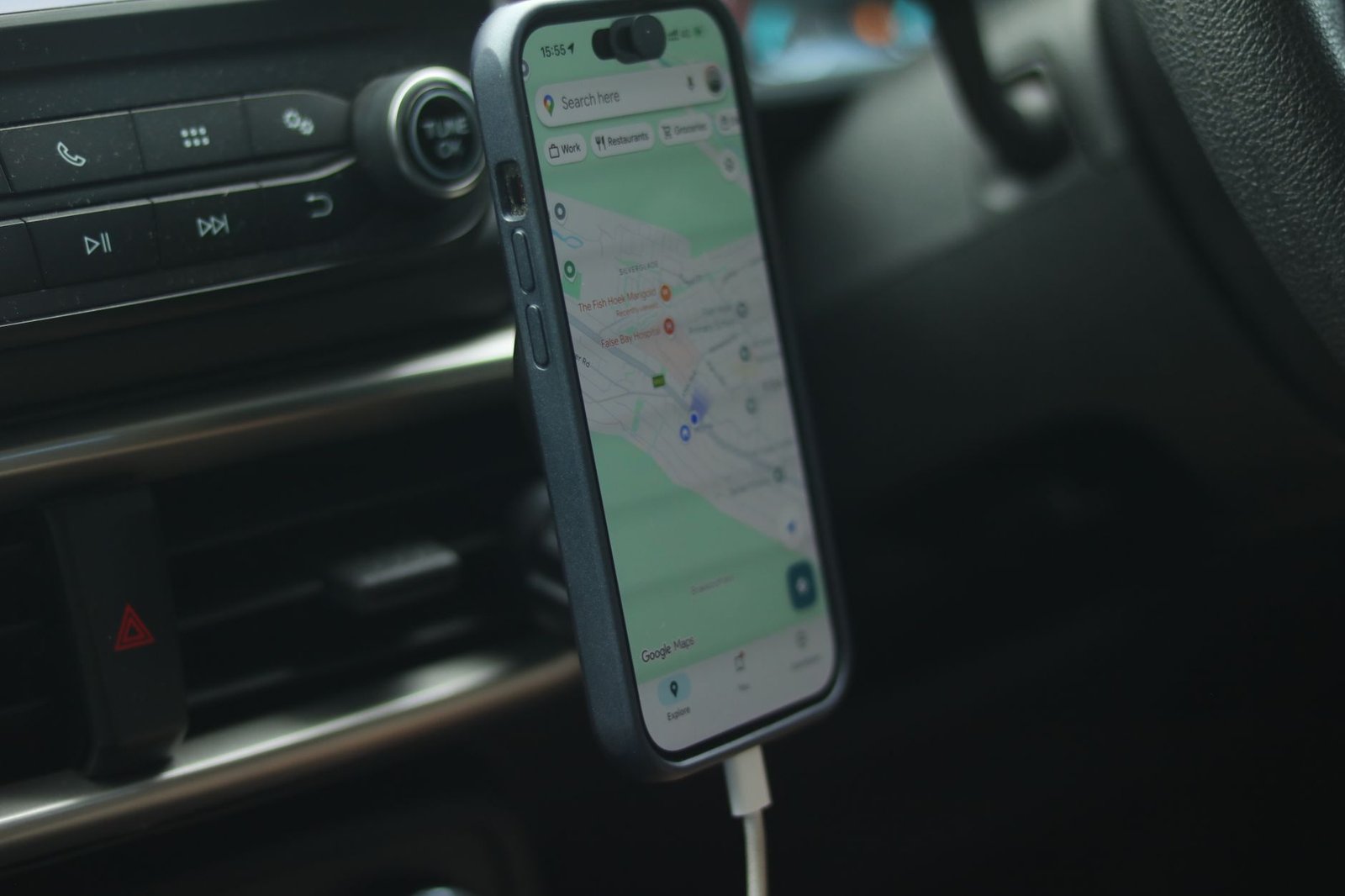

Your smartphone knows where you went for lunch, which doctor you visited last Tuesday, and how often you drive past that one neighborhood you have been eyeing for a move. Google Maps has been quietly logging all of it through a feature called Timeline, and while some users find it genuinely handy for retracing their steps, many more find it unsettling. The good news is that shutting it down takes only a few taps, and understanding what you are actually turning off helps you make a smarter, more informed decision.
Why Location Tracking Feels More Invasive Than Ever
Public awareness around data privacy has grown sharply in recent years. A 2023 Pew Research survey found that roughly 72 percent of Americans feel their daily movements are being tracked by companies, and most of them are not happy about it. Google has taken steps to address these concerns, including a notable shift that moved Timeline data storage from the cloud to your local device by default, rather than keeping it on Google’s servers unless you explicitly back it up. That is a meaningful change, but it does not eliminate the discomfort many people feel about having a running log of their movements at all. High-profile legal cases have also demonstrated that location data, even when stored locally, can end up in the wrong hands under certain circumstances, making the case for turning the feature off even stronger.
A Step-by-Step Look at Turning Off Google Timeline
The process is straightforward once you know where to look. Open the Google Maps app and tap your profile picture on the right side of the search bar. Select Your Timeline, then tap the three dots in the top-right corner and choose Location and privacy settings. From there, select Timeline and use the dropdown to either turn it off while keeping your existing data or turn it off and delete everything. If you prefer a middle ground, the Auto-delete option lets you set a rolling window of three, eighteen, or thirty-six months so older data gets cleared automatically. Keep in mind these settings are device-specific, so if you use Google Maps on a tablet or a second phone, you will need to repeat the process on each one.
Fine-Grained Controls Worth Knowing About
Beyond the main toggle, Google gives you several additional tools worth exploring. A cloud backup icon within the Timeline screen lets you enable or disable an encrypted backup to your Google account. A pencil icon lets you edit or delete a specific day’s activity. Under the Location and privacy screen, you can export your Timeline data to another device or delete a custom date range if you want to scrub a specific period without wiping everything. These granular options matter because privacy is rarely one-size-fits-all.
For consumers who are actively evaluating smartphones, privacy-focused apps, or even switching ecosystems entirely, understanding how deeply embedded location tracking is in everyday tools like Google Maps is a real factor in purchasing decisions. The easier companies make it to control your data, the more trust they build, and trust is increasingly one of the most powerful drivers of tech adoption and brand loyalty.