

Start With the Simplest Fix: Your Lens
Before you dig into menus or buy anything new, take a close look at the tiny glass circle on the back of your phone. Pocket lint, fingerprints, and smudges from a day of handling can quietly soften every shot you take. The fix is refreshingly low-tech. Remove your case, grab a microfiber cloth, and wipe the lens gently. If stubborn marks remain, dampen the cloth very slightly with distilled water, wipe again, and never apply liquid directly to the lens. You might be surprised how much crispness comes back in seconds.
Plenty of iPhone owners assume blur is a hardware defect, but a dirty lens is by far the most common culprit. It costs nothing to check, so make it the first step every time your pictures look hazy.
Light Is the Real Villain Behind Most Blurry Shots
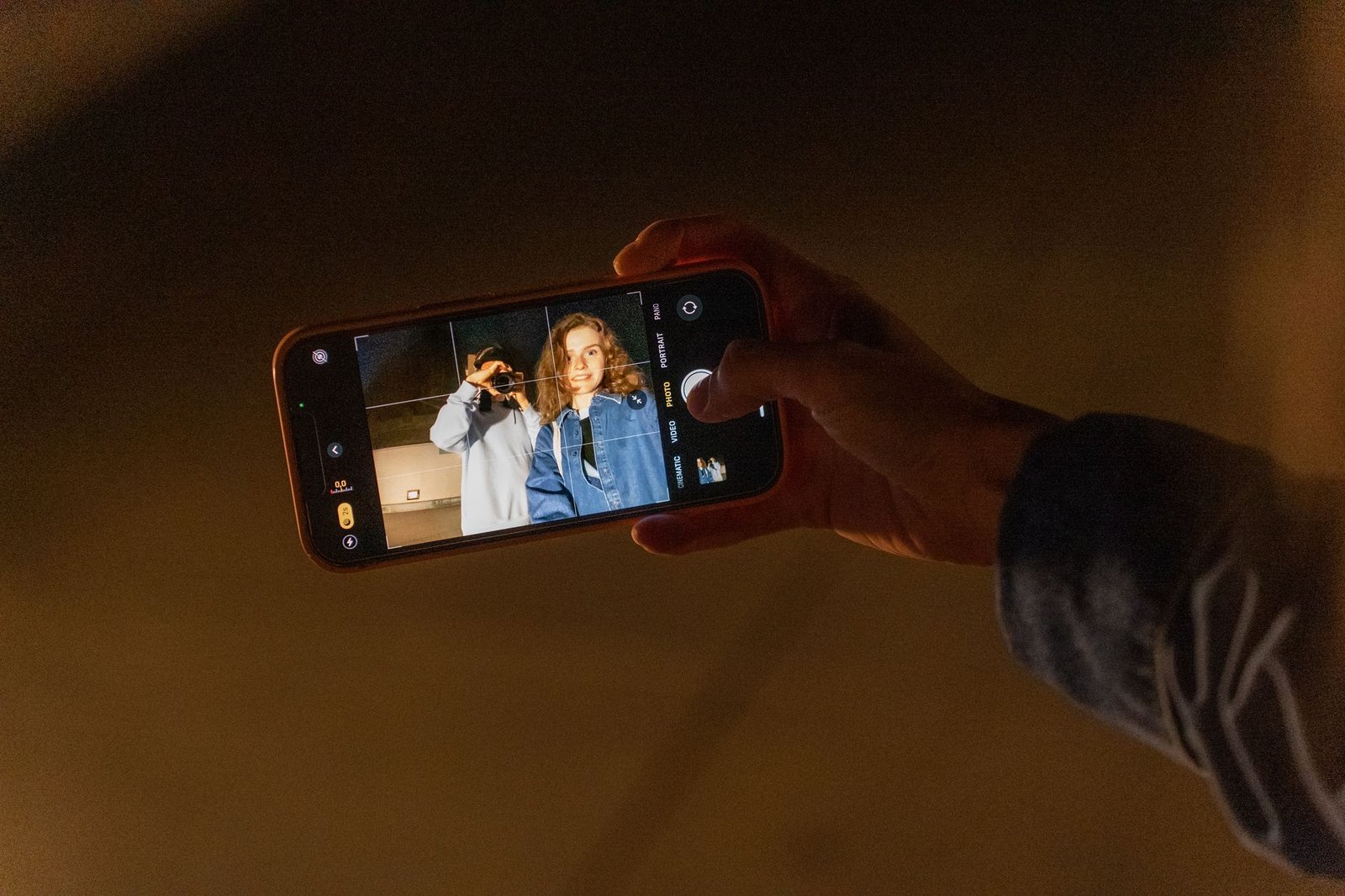
If a clean lens doesn’t solve the problem, lighting is almost certainly the next suspect. Low light forces the camera to use slower shutter speeds, which makes it easy for even a tiny hand tremor to smear the image. It also boosts digital noise, and that noise becomes blocky and mushy once the file is compressed. The good news is that your iPhone is built to handle dim scenes. On models iPhone 11 and newer, Night Mode, marked by the moon icon at the top of the camera, brightens dark scenes and recovers surprising detail. It often switches on automatically, but you can keep an eye on it and tap it manually when the room feels gloomy.
You can also help the camera by locking focus. Tap and hold on your subject until the “AE/AF LOCK” prompt appears. This stops the phone from hunting back and forth between focal points, which is a frequent reason shots look soft right when you press the button.
Small Changes That Add Up to Sharper Photos
Head to Settings and then Camera to review your resolution and frame rate options. Anything above 720p typically delivers noticeably crisper results, especially when you plan to view images on a large screen. For people who want full manual control over shutter speed and ISO, third-party apps such as Camera+ open up those advanced dials. They are particularly useful on older devices where the stock camera app offers fewer tools.
And if you are serious about eliminating blur altogether, a small tripod is one of the most effective accessories you can buy. Keeping the phone perfectly still during longer exposures removes the camera shake that turns small movements into visible smearing. Pair a tripod with a steady hand and good lighting, and your results will look like they came from a far more expensive camera.
Why Better Photos Matter for Your Next Phone Purchase
Blurry photos are more than an annoyance. They are a signal that many people now rely on their phones as their primary cameras, and expectations keep climbing. Shoppers comparing new devices increasingly weigh low-light performance and image sharpness alongside battery life and price. If you find that your current handset struggles even after you clean the lens, adjust your settings, and steady your grip, it may be time to explore newer models with better sensors and stronger computational photography. Before you spend a dime, though, try these free adjustments. You may discover that the phone you already own has far more to offer than you realized.