

Why Speed Camera Alerts Matter More Than Ever
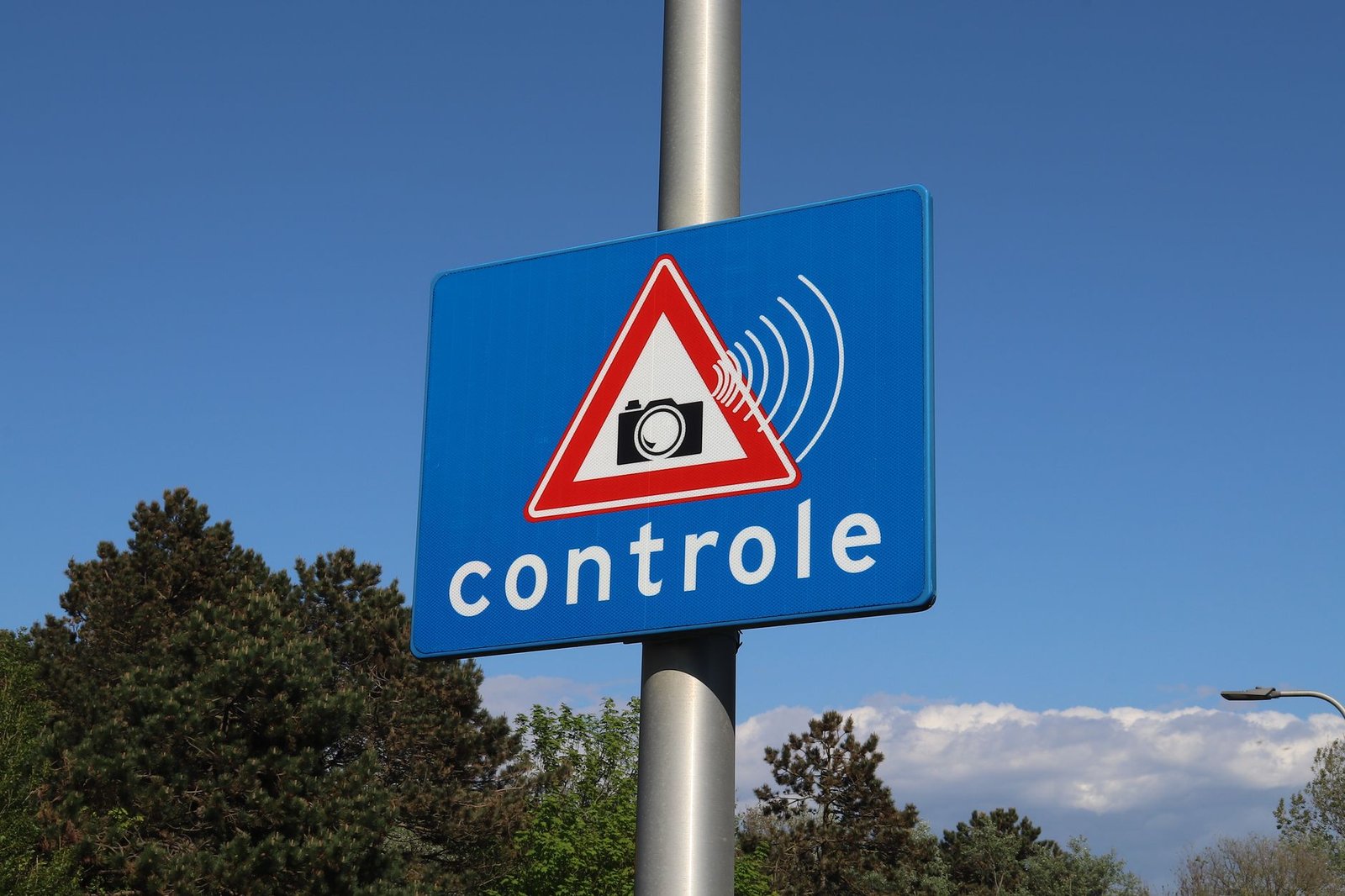
Speed cameras are spreading fast. Several US states and regions around the world now use automated systems to catch drivers who exceed the limit, and many of these cameras sit on roads where a driver might not notice a sudden drop in speed. If you have ever rolled past a 45 mph sign that switched to 35 without warning, you know how easy it is to get caught off guard. The good news is that your phone and your car’s infotainment screen can help you stay ahead of the problem without spending a dime on new gear.
Android Auto makes this possible by pulling in crowd-sourced data from apps like Google Maps and Waze. Other drivers report red light cameras, speed traps, and average speed zones while they are on the road, and those reports show up on your dashboard as you drive. The system is not perfect, and no app can flag every enforcement device, but it works as a genuinely useful early warning system for everyday commuting and road trips.
Setting Up Alerts in Google Maps and Waze
To start, open Google Maps on your phone, tap your profile photo in the top-right corner, and head to Settings, then Navigation. Enable the option labeled “Get alerts for reported incidents and other conditions that may impact your drive.” Once that is switched on, Android Auto will pass along those warnings while you navigate.
Many enthusiasts prefer Waze, however. Open the app and go to Settings, then Alerts and reports, then Reports, then Cameras. From there you can choose from five camera types, including speeding, red light, and mobile police cameras, and decide which ones you want flagged. Your choices carry over automatically whenever you use Waze through Android Auto. Because Waze is widely considered the more aggressive of the two when it comes to enforcement alerts, it is worth testing both apps on your usual route to see which one fits your habits best. The handy part is that your car will remember whichever app you used last, so you do not need to switch manually every time you get in.
Turning Your Dashboard Into a Smarter Speedometer
Beyond camera warnings, both apps can display the posted speed limit for the road you are on, and you can add a GPS-based speedometer to the screen. This is especially useful in older vehicles. Aftermarket wheels or tires that differ from factory size can throw off the car’s built-in gauge. A tire that is just five percent larger in circumference, for example, can make a 100 mph reading show up as 105 mph. A phone-based GPS speedometer sidesteps that calibration problem entirely.
In Google Maps, open Settings, tap Navigation, scroll down, and turn on the Speedometer and Speed limits toggles. In Waze, the path is Settings, Map display, Speedometer, Show speed limit, then Always. Waze also goes a step further by letting you set an alert for when you exceed the limit by a chosen margin, such as five miles per hour over. Combined with camera warnings, that kind of feedback can make a noticeable difference in how carefully you drive.
What This Means for Your Next Car or Upgrade
Features like these are a big reason drivers are shopping differently today. Many buyers now compare infotainment compatibility, wireless Android Auto support, and navigation quality as seriously as horsepower or fuel economy. If you are in the market for a new vehicle or a head unit upgrade, checking whether a system supports Android Auto and works smoothly with Waze and Google Maps is a smart move. Software that costs nothing to activate can deliver real safety value, and a car that plays nicely with your phone is becoming a must-have rather than a bonus. Before you buy, make sure the display you are considering supports the apps you already rely on, so you can take full advantage of every alert and tool they offer.